Tuesday, September 12, 2017

Naukri: To Change Incorrect Email ID in Naukri website

While Registering for naukri website using email id, if you type the incorrect email-id by mistake and realized the mistake after filling the complete profile, then do not panic. You have an option to correct it.

To change the email address in Naukri :


  1. Log in to your naukri account using existing email id and password
  2. Now click My Naukri →Edit Profile Option
  3. Now, Profile snapshot page in which you can see your existing email-id
  4. Click Change Email-id option that can be found near the existing email-id
  5. In the Manage Emal ID page,  Add your new email ID in the Secondary Email ID field
  6. Verify the Secondary Email ID by clicking on the link ‘Verify’ 
  7. After Email ID verification, refresh this 'Manage Email IDs' page.
  8. Now, click on the link ‘Make this my Primary Email ID’.

Your email address will be updated successfully and you can use the new email-id from next session. 

Wednesday, August 23, 2017

Whatsapp Web : Where do the images and messages store when we use whatsapp web | WhatsApp blob URL meaning

WhatsApp web Storage Location

Whatsapp web is a familiar feature through which one's whatsapp can be accessed in a desktop browser by scanning the QR code visible in your smartphone screen once you click whatsapp web.

The desktop has to be connected with internet to use whatsapp in realtime.

Have you ever wonder where the messages, images and thumbnails will be stored while using whatsapp web.

Are they stored in whatsapp web server? Nope
Are they stored in your phone itself and grabbed by the computer? Nope

They are stored in a temporary memory storage in your PC and can be viewed only by the browser that you use for whatsapp web. And once you come out of whatsapp web, those encrypted files will be deleted from your temporary memory.

Whatsapp uses "blob" type of url to do this task cleverly. 'blob' URL is nothing but a form of javascript, usually starts with the syntax blob followed usual https url that refer to the temporary location where the file is saved . The file may be a text message, thumbnail or image.

If you want to store the image in the local storage, you have to right and save it in desired location.

Tuesday, August 8, 2017

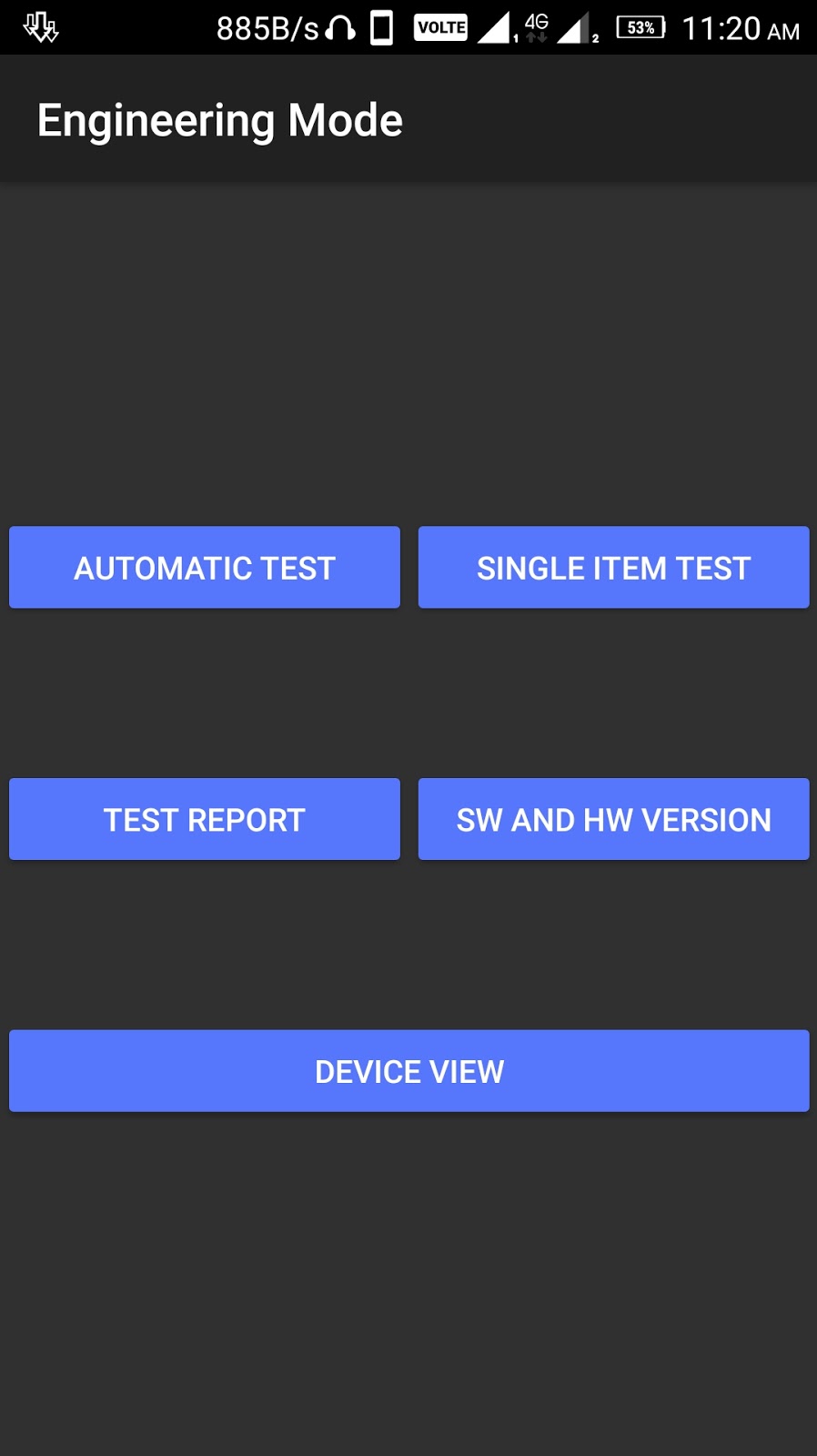
Lenovo k6 power engineer mode code | USSD code to enter Engineer Mode in Lenovo K6 Power

In Lenovo K6 Power, Engineer mode allows you to self test the hardware features like Backlight, Touch Panel, TFllash, Bluetooth, SIM card, Vibration, RTC, SPeaker, Reciever, Headset slot, FM, Camera, LED, Battery, WLAN, Torch, Loopback, LCD, GPS, G_Sensor, Gyro Sensor, Proximity sensor, Optical sensor, FInger print, Magnetic sensor, OTG, Rawdata etc.

Lenovo K6 Power Engineer Mode code

You can check whether any one of the following item is properly working or not using this engineer mode using simple interface .

Apart from this you can get software kernel version, Hardware version, PCBA serial Number, Phone Serial Number, IMEI1, IMEI2 for both SIM slots, secur boot status etc.
  • To enter the Engineer mode, dial the code ####1111# in your lenovo k6 power phone dialer.

Lenovo K6 Power Smart Guide | IMEI, SN , Hardware/ Software Version, USB debugging, Tethering Tutorial

Product family of Lenovo SmartPhone
Product family of Lenovo SmartPhone can be divided to following categories:
  • S series (fashion),
  • A series(cost effective), 
  • P series(Business)
  • K series(High-performance).


To get SN, IP address, MAC address in Lenovo K6 Power, K6, Note
Get from IMEI/SN label in battery bin. Example shows here:
Lenovo K6 , K6 Power, Note IMEI / SN
Go to Settings -> About phone -> Status -> Serial number

Lenovo K6 Power , K6 Note serial number

Lenovo K6 SN’s format and structure
  • 10 digits S/N format and structure:  1 digit (plant code) + 1 digit (MIDH code: "D") + 8 digits serial number.
  • 18 digits S/N format and structure: XXX (Model code) + XX (HW code) + XXXXX (YMMDD) + XXXXXXXX (serial number).


USSD code to get IMEI for Lenovo K6 Power
  • In your Lenovo smartphone , open phone dialer and type *#06#
  • Once you tap the dial button, you can see two IMEI numbers for each SIM slot.

USSD code TO FIND imei
  • Go to Settings -> About phone -> Status -> IMEI information

Figure 4

To check the software version in Lenovo K6 Series
  • Go to Settings -> About phone -> Version infos

Figure 5

Latest Official Software update for Lenovo K6, K6 Power, K6 Note
  1. Open WLAN and ensure have connected with WiFi internet data.
  2. Go to Settings -> AboutPhone -> system new software version, the phone will push information to inform user to download and install the latest Android OS and optimise the existing apps according to nee OS version.


To know Lenovo K6 Power phone’s HW version
Refer above. 18 digits S/N format and structure: XXX (Model code) + XX (HW code) + XXXXX (YMMDD) + XXXXXXXX (serial number)

To know warranty/guarantee for Lenovo K6 Power?
Please refer to the warranty card in gift box.

To check the phone's model in Lenovo Smartphone 
Please refer to label in battery bin or by inquiring system infos. “setting- About Phone”

To activate USB storage function in Lenovo K6 Power
After connecting Phone to PC, select “USB storage ” or by pulling status bar on screen to open” USB storage” shows here:
Pulling status bar---connected as USB storage—connect to USB storage device.
Figure 8

 To install the locally downloaded apps in Lenovo K6 Power
You need to allow installation of other third party android market apps, and can download the apps from “Apps store” in Mobile.
---“setting---security—unknown sources”.

To uninstall the Apps in Lenovo K6 Power
Method 1: ---“Setting—apps---click app---uninstall”
Method 2: long press app icon on apps list, and then click “delete” sign once more.

 To move app to SD card in Lenovo K6 Power

  • Go to “Setting---Apps---click app---Move to SD card”
  • Preload app and some limited app can’t be moved to SD card.
  • Before moving the app, ensure that SD card is properly mounted in the SD card slot.

To clear the data after using app in Lenovo K6 Power

  • Go to “Setting---Apps---downloaded/SD card---select app---clear data”

To check and close running apps in Lenovo K6 Power
Method1: “setting---apps—running---select app—stop
Figure 9
Method 2: Click right-bottom Icon; slip the pop-window toward left to stop running.
Figure 10

To set the screen rotating function into Landscape in Lenovo K6 Powee
Go to ---“Setting---display---Auto-rotate screen”.

To cancel screen lock in Lenovo K6 Power

  • Go to Setting---security---screen lock---none”.

To change the shortcut function on four-leaf clover in Lenovo Smartphone

  • Long pressing the leaf on Four-leaf clover and select app from apps list.

To open “USB debugging” in Lenovo K6 Power

  • Go to Setting---developer options---USB debugging”.

To clear up the browser history, buffer, cookie and user password?

  • Open Browser---Menu---setting---Privacy security

 To revert to Factory setting in Lenovo Phones 

  • Go to setting---backup and reset".

To format SD card in Lenovo K series

  • Go to Setting---storage---SD card.

Tethering&portable hotspot in Lenovo K6 Power
Share your phone’s 3G internet connection to your computer and other devices. You need open your 3G “Data connection” first.

Connecting via WLAN hotspot
1. Enable portable WLAN hotspot function.
2. Switch on WLAN from your computer or to other wireless devices.
3. Select your phone’s SSID and enter the required password if any in your computer or other wireless devices.
4. You can configure your SSID name and password through you phone’s WLAN configuration.(apps—settings--WLAN).


Connecting via Bluetooth
1. Enable your phone’s “Bluetooth” function.
2. Search and pair your phone’s Bluetooth from the computer.
3. Once paired, connect the computer to your phone.
4. Once connected, you can now browse the internet using your phone’s Bluetooth connection.

Connecting via USB (USB tethering)
1. Connect your phone to the computer via USB cable. Make sure you have switched on the USB debugging mode. (apps—settings—developer options—USB debugging).
2. Switch on personal hot point and choose “connect via USB” and check the “USB tethering” to connect. (For some models, maybe need install driver in computer).
3. Accessing your phone’s SD card from your computer is not allowed once USB tethering is being used.

To work with two SIM cards
1. According to the SIM SLOT and sign to use SIM cards.
2. SIM management: apps---setting---SIM management.

How many RF modules the Lenovo Smart Phone Have,  one or two?
According to the SIM Slot SIGN.

To apply the network settings for Operator
Need use the Operator SIM card, don’t need special network setting.

To do GPS/Premium GPS Navigation setting
--apps---settings---location services---activate the “GPS satellites” and “network location service”. It’s better to search GPS outdoor.

To do Radio Transmission
Need insert the earphone which phone matched, and run radio app. Touch the “right key” to search channel.

Lenovo K6 Power User manual download


OTG function in Lenovo K6 Power
USB On-The-Go, often abbreviated USB OTG, is a specification that allows USB devices such as digital audio players or mobile phones to act as a host, allowing other USB devices like a USB flash drive, mouse, or keyboard to be attached to them.

Wednesday, August 2, 2017

Activate Warranty Card for Vivo v5s | Warranty card missing in Vivo v5s pack - Solution

Vivo has stopped providing physical warranty card & physical manual guide along with the phone package.
Even though they have mentioned that the pack contains the warranty card, quick start manual guide, the customers don't find any of the both in the pack.

But , don't panic. Because, both warranty and quick start manual will be available as digital.

  • To access the Vivo V5s offline manual , Go to settings → More settings and select Manual.
  • To activate warranty, Go to settings and select E-warranty card option.

Fill the requested details - Customer name, Phone number and Place to activate the warranty. This will act as similar to the physical warranty card.
Apart from this physical warranty card, you have to preserve the sticker that was pasted on the screen which contains imei numbers, bar codes and some other important informations.

Tuesday, August 1, 2017

Tech Mahindra Slogan | Connected world Connected Experiences - New Slogan of Tech Mahindra

As the world rapidly moves towards the Digital transformation, Automation with help of Artificial intelligence , now most of the companies re-imagining themselves and aligning their goals and visions towards it.

Tech Mahindra is not a exception . Tech Mahindra , one of the leading company in the service industry re-tagged their Slogan as " Connected World Connected Experiences" with a hashtag #unlockexpereinces.


It is obvious that the company strongly believes that the future is strongly embedded with mobiles and machine communications. So, it is expected that their technologies, services and solutions will be depending on improving the man-machine, machine-machine interactions resulting in simplifying the lives.

To take screenshot in vivo v5s | Screenshot shortcut vivo v5s

Common screenshot:

Simultaneously hold down the [Home button] and the [Power button] to take a screenshot. The phone will save what is displayed on the screen. You can enter the "Albums > All albums > Screenshot" to view the screenshots.

Super screenshot:

You can see the shortcut by slipping upward from the bottom of screen. In the interface of shortcut, click "S-capture" to enable the feature. Please operate according to the tips. For more detailed info, please check "Settings > Super screenshot > Instructions


Location of the saved screenshots: File Manager > All files > Screenshot.

If you want to hide the screenshot icon from the notification bar, just click the edit icon in the right corner of the notification bar . Now press the screenshot icon and drag it to the bottom of the list.

If you want to show the screenshot icon in the vivo v5s notification bar, then click the edit icon in the right corner of the notification bar, drag the super screenshot icon from bottom of the list to the top section.